 Udapt
UdaptUser guide
How to use Udapt
A friendly walk through everything Udapt does. Take it at your own pace — you don’t need to use every feature for your plan to work. Nothing here is medical advice.
Getting started
There’s no account to create. Open Udapt and it asks a few questions, which takes about two minutes. Your answers stay on your phone.
- Connect Apple Health. Udapt reads your sleep, heart rate variability, resting heart rate, weight and workouts. You can skip this and use the morning check-in instead.
- About you. Your date of birth, sex, height and weight, used only to estimate how much energy you burn. If Apple Health already knows them, they’re filled in for you.
- Your typical day. How active you are outside your workouts.
- Your goal. Lose, maintain or gain weight, and how fast.
- Your training days and whether you train at a gym or at home with dumbbells.
Udapt then shows your starting plan. It’s an estimate to begin with; once you’ve weighed in and logged your food every day for a month, it adjusts to what your body actually does.
The Today screen
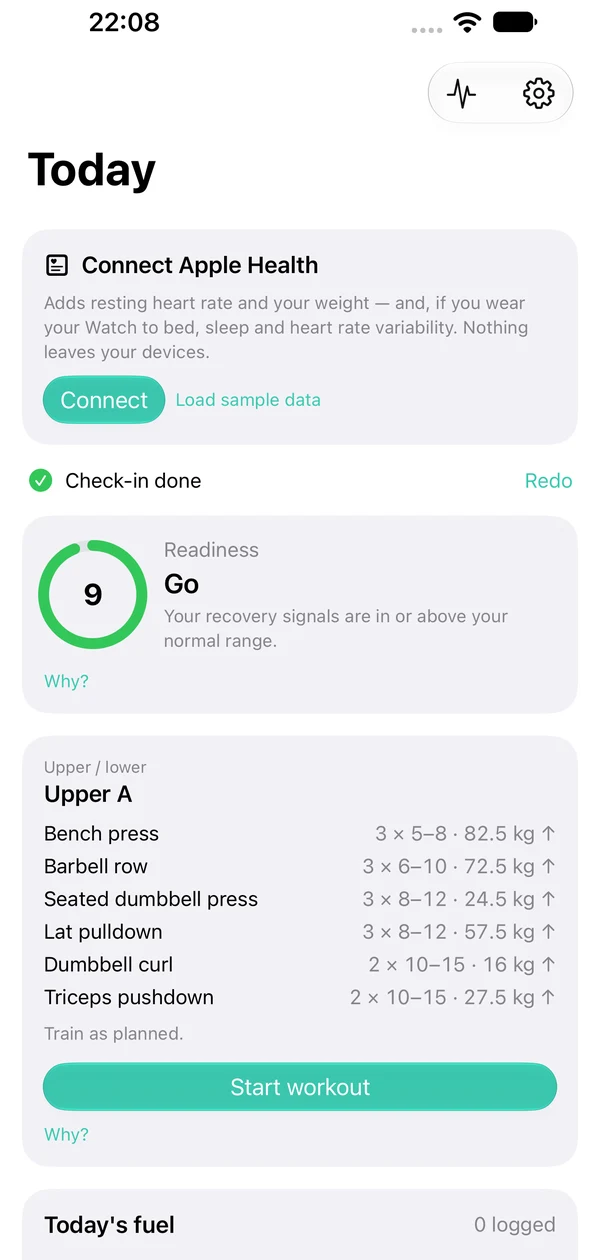
Today is the only screen you need each morning. It shows three cards:
- Readiness: your score out of 10 and a one-line reason.
- Training: today’s workout, already adjusted for how you’re doing.
- Today’s food: your calorie target, protein, carbs and fat, and how much you’ve logged.
Every card has a Why? button that explains what changed and why, in plain words. Touch and hold a card and drag it to change the order. Pull down to refresh.
Your readiness score
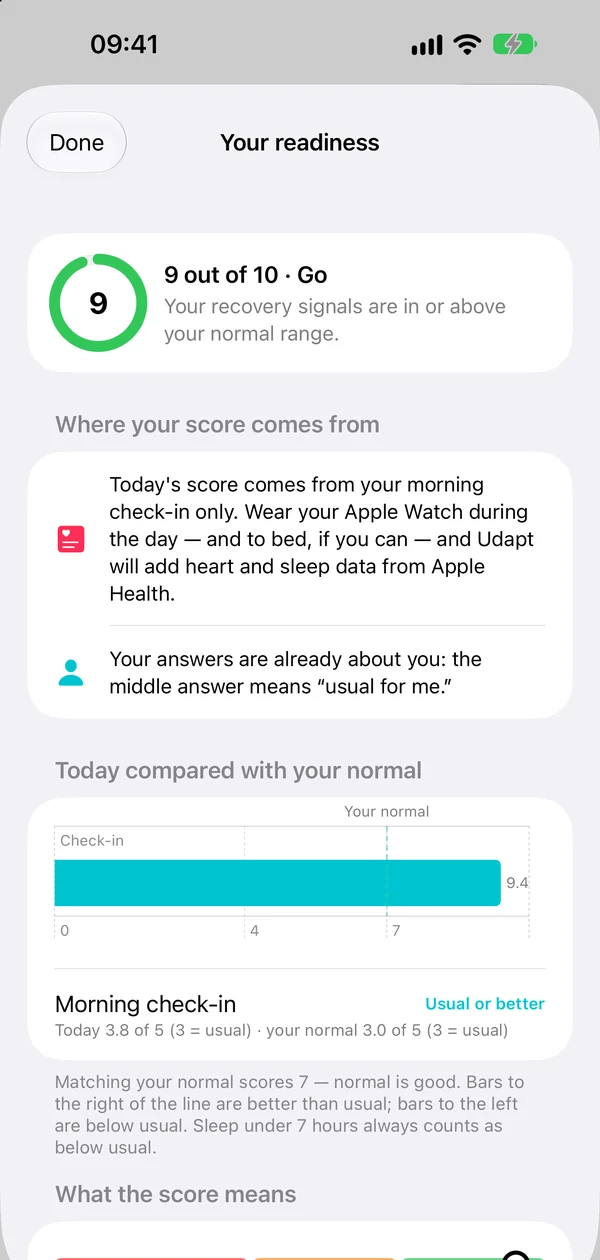
Each morning you get a score from 0 to 10 and one of three words:
- Go (7–10): train as planned.
- Ease off (4–6): a lighter version of today’s session.
- Recover (0–3): a walk, stretching or rest is suggested.
Your score comes from your own Apple Health data — heart rate variability, resting heart rate and sleep, recorded by your Apple Watch — plus your morning check-in. Each one is compared with your own last 30 days, not with anyone else. A 7 means you’re at your normal, and normal is good.
Tap Why? on the card to see charts of how each signal compares with your normal, how much each one counts, and the research behind it. For the full story, see The science.
“Learning your normal”? Udapt needs about two weeks of Apple Health data first. In the meantime, the morning check-in still gives you a score.
The morning check-in
Five quick questions: how you slept, your energy, soreness, stress and mood. Tap one answer for each and then Update my plan.
The middle answer always means “usual for me”, so answer compared with a normal day for you. It counts for almost a third of your score, because a review of 56 studies found that how people say they feel picks up the strain of training at least as well as heart or blood measurements.
Not in the mood? Tap Skip today. Changed your mind? Tap Redo. If you don’t wear your Watch to bed, the check-in is especially worth doing.
Doing a workout
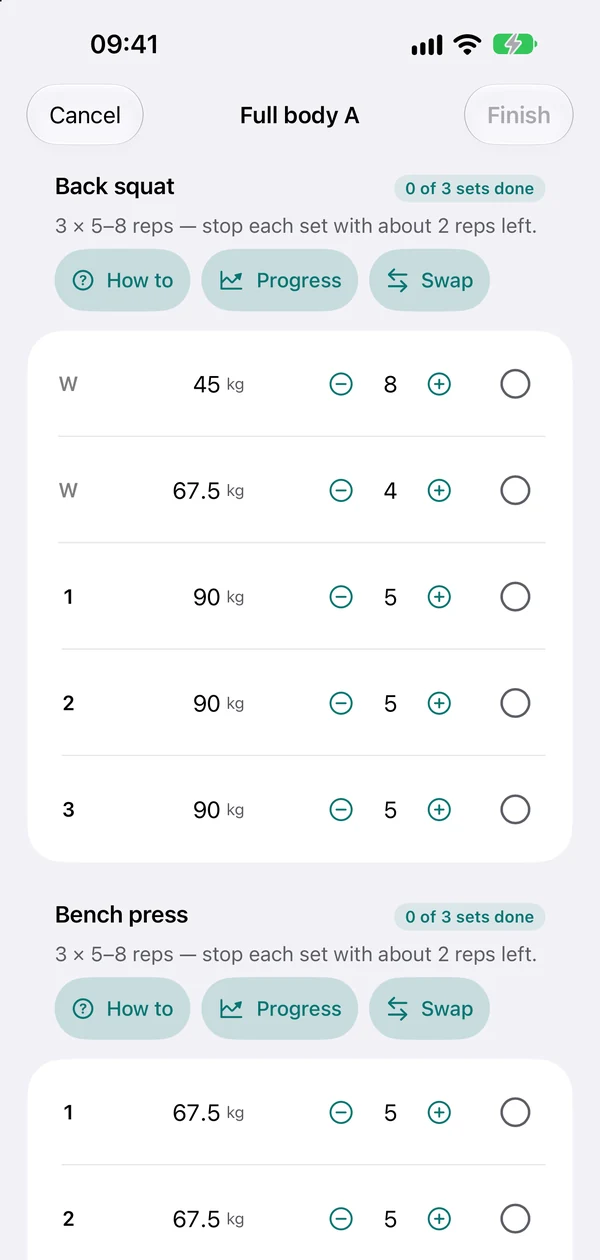
- On Today, tap Start workout.
- For each set, adjust the weight and reps if you need to, then tap the circle to mark it done.
- After a main set, Udapt asks Reps left? — how many more you could have done. This is how it decides when to raise the weight. An honest guess is fine.
- Tap Finish when you’re done. Your workout is saved to Apple Health, and next time’s weights are worked out for you.
Next to each exercise are three buttons: How to (photos, step-by-step instructions, and a Watch on YouTube button that searches YouTube for videos of that exercise — these aren’t made by Udapt, so pick one from a qualified coach), Progress (a chart of your strength over time, once youProgress (a chart of your strength over time)rsquo;ve done the exercise before) and Swap (choose a different exercise for the same muscles, just for today or always).
If Udapt has eased off today’s session but you feel great, tap Keep the original session.
Logging food
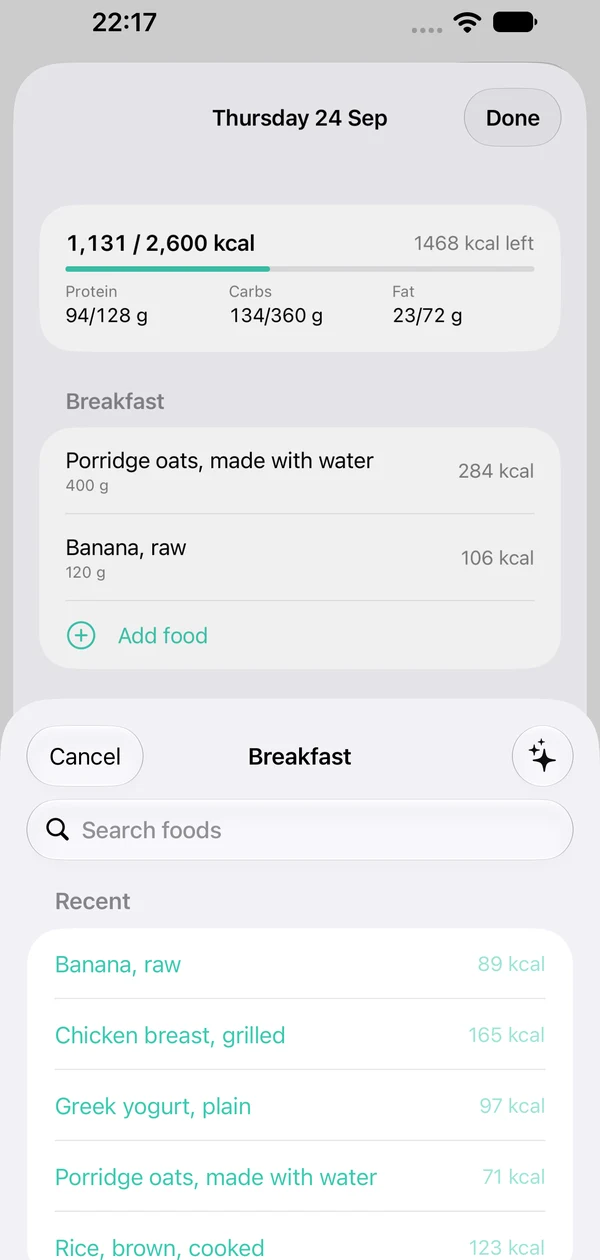
Tap Log food on Today, then Add food under a meal. You can:
- Search thousands of foods by name.
- Scan a barcode on packaged food. Only the barcode number is sent to Open Food Facts, a nonprofit food database.
- Smart log: take a photo of your meal or say what you ate. This uses Apple Intelligence on your phone, so it only appears on iPhones that support it. Udapt shows what it recognised for you to check before anything is logged.
- Quick add calories when you know the number but not the food, like a takeaway.
- Copy yesterday’s food if you eat the same things.
At the end of the day, switch on Today’s log is complete. Only complete days are used to fine-tune your calorie target, so a half-logged day doesn’t throw it off.
Understanding your food targets
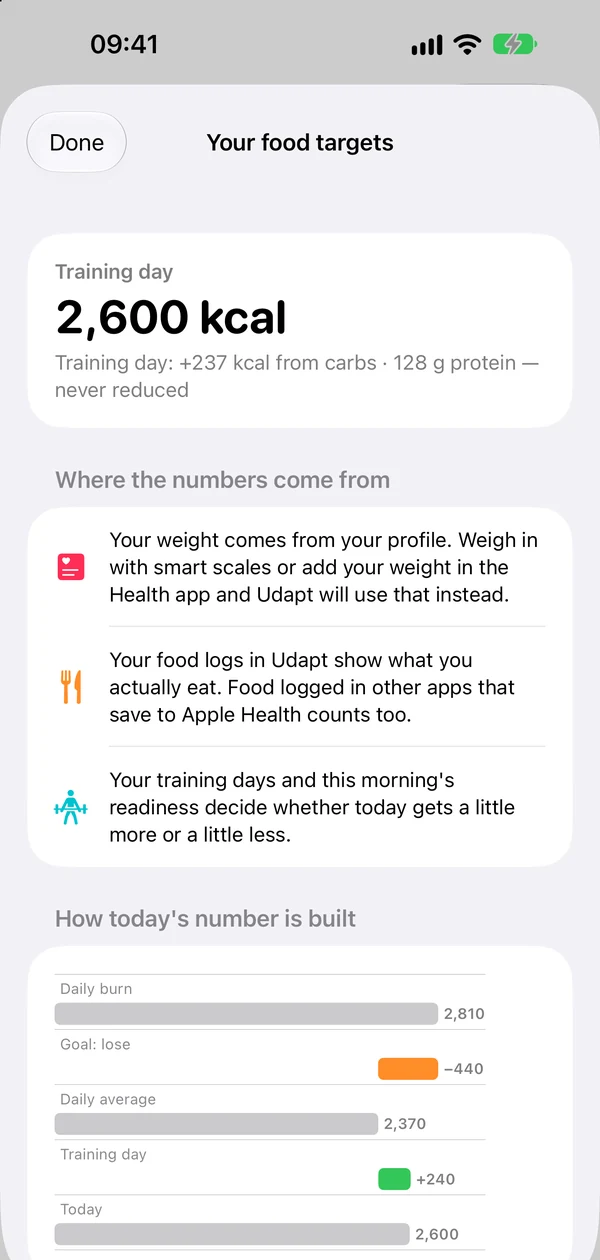
- Training days get a little more food, mostly from carbs. Rest days get a little less. Your weekly total stays the same.
- On Ease off and Recover days your target is held at your daily average, with no extra cut.
- Protein never drops, whatever the day.
- Once you’ve weighed in and logged your food completely every day for 31 days, Udapt compares what you ate with how your weight moved and corrects your target. That’s how much data the research found gives an accurate result.
Tap Why? on the Today’s food card to see how today’s number was built, step by step, your protein, carbs and fat, your whole week, and how many more days of logging Udapt needs before it learns your real daily burn. Each rule links to the research behind it (see The science).
Weigh yourself with smart scales that save to Apple Health, or add your weight in the Health app. Udapt always uses your latest weight.
Protecting a joint
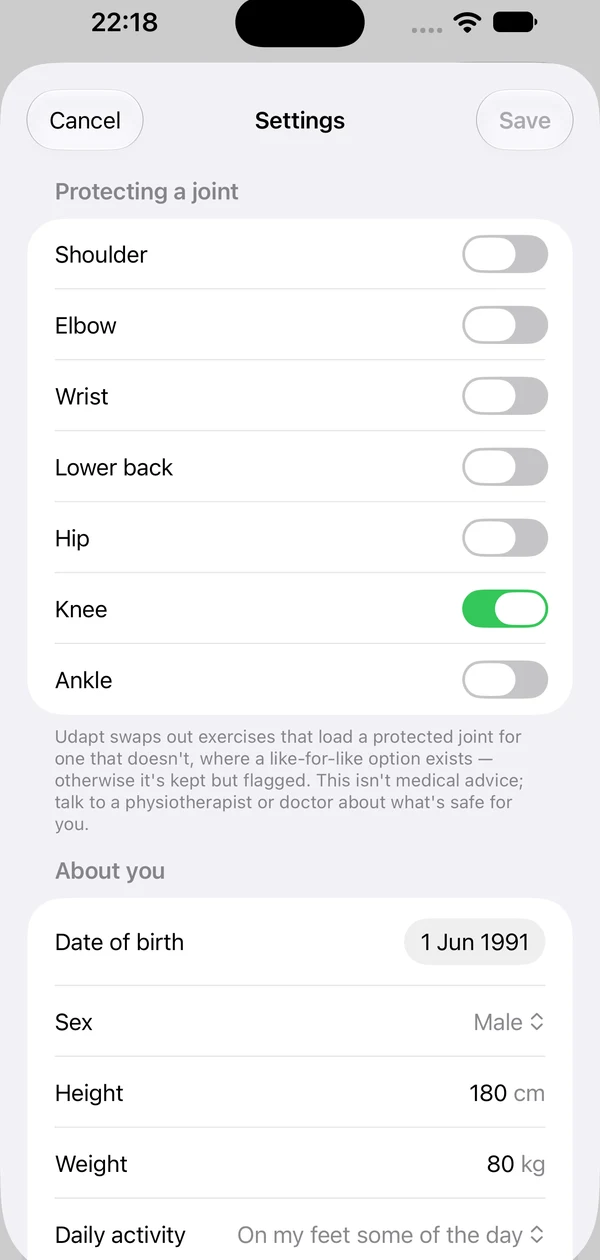
If you’re being careful with a shoulder, elbow, wrist, lower back, hip, knee or ankle, go to Settings → Training → Protect a joint and switch it on.
Udapt then swaps exercises that load that joint for a similar one that doesn’t. If there’s no good swap, the exercise stays but is flagged so you can go carefully or pick your own.
This isn’t medical advice. Please check with a physiotherapist or doctor about what’s safe for you.
Siri and Shortcuts
Say “How ready am I in Udapt?” to hear today’s score and the reason.
Say “Log my usual breakfast in Udapt” to log what you normally have. Udapt learns your usual breakfast once you’ve logged the same foods regularly.
Settings
Tap the gear at the top of Today. Settings is grouped into:
- Your plan: You and your goal (age, height, weight, activity, goal and pace), Training (days, gym or home, protected joints, your exercise swaps) and Food (protein and menstrual cycle options).
- Help and information: this guide, The science, the website and support.
- Your data: the Privacy Policy, Terms, and Delete all my data.
Changes aren’t applied until you tap Save.
Your privacy
Udapt has no servers and no accounts. Your profile, workouts, food logs and check-ins stay on your phone and are never backed up to iCloud. Apple Health is where your health data lives, and Udapt only reads from it on your device.
The one exception: scanning a barcode sends just the barcode number to Open Food Facts. Finished workouts are saved to Apple Health so they appear alongside your other activity.
To remove everything, go to Settings → Delete all my data. Anything in Apple Health is managed in the Health app. Read the full Privacy Policy.
If something isn’t working
- My readiness says “Waiting for today’s check-in”
- Udapt didn’t find last night’s heart or sleep data. Do the morning check-in for a score, or wear your Watch to bed tonight.
- Udapt isn’t seeing my Apple Health data
- On your iPhone, open Settings → Privacy & Security → Health → Udapt and make sure the items are switched on. Then pull down on Today to refresh.
- I can’t see Smart log
- Photo and voice logging need Apple Intelligence, which requires a supported iPhone and needs to be switched on in iPhone Settings. Search and barcode scanning always work.
- My calorie target hasn’t changed yet
- It needs a weigh-in every day for 31 days (in Apple Health, from smart scales or the Health app) and a complete food log on each of those days (switch on Today’s log is complete, or log in another app that saves to Apple Health). A missed day stops counting against you once it’s more than 31 days ago. Tap Why? on the food card to see how close you are.
- Still stuck?
- Email info@isafenet.app with what happened, your iPhone model and iOS version. See also Support.